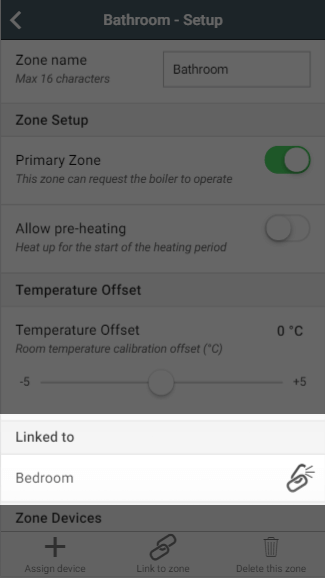
Instead of creating a schedule for some of your zones, you may want them to follow the schedule of one or more other zones, such as an en-suite following the heating schedule of the attached bedroom. You can do this by linking the zones together, so that the linked zone uses the same schedule but heats to its own temperature.
Linked mode is not chosen from the mode selector. It is set up from the zone's Zone Setup page, using 'Link to zone' (see below).
The relationship between linked zones can be thought of as a parent and child relationship:
-
The linked zone is the 'child', which does what it is told by its 'parent' zone(s).
-
A child can have multiple parents. For example, a family bathroom could follow the heating schedule of the 2 bedrooms whose occupants use the bathroom. When either bedroom calls for heat, the bathroom will heat to its own temperature as well.
-
A parent can have multiple children. For example, a bedroom could tell the landing and the family bathroom to call for heat whenever the bedroom is being heated.
-
A child zone can have a different temperature to its parents, as you may want a bathroom to be warmer than a bedroom, or a hallway to be cooler than the rooms around it.
-
A child zone only calls for heat when one of its parent zones does, so it cannot be heated (or overridden) on its own. When none of its parents are calling for heat, the child zone controls to its frost protection temperature (4°C by default).
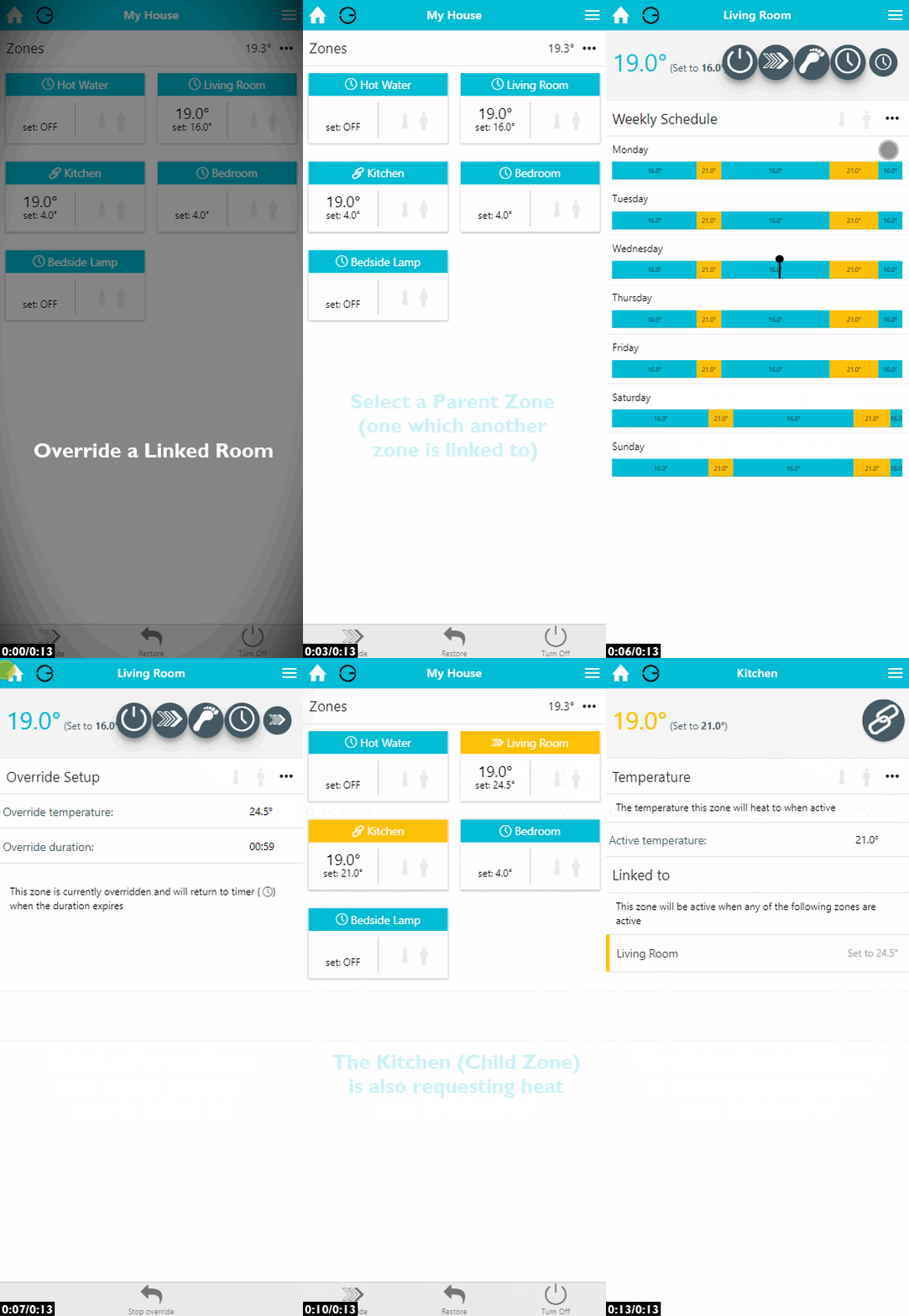
If the schedule of a parent zone is changed, the child zone will automatically follow the new schedule. If a parent zone is overridden, its child zones will heat to their own active temperature for the duration of the override.
How to link zones
|
Demonstration |
|---|
|
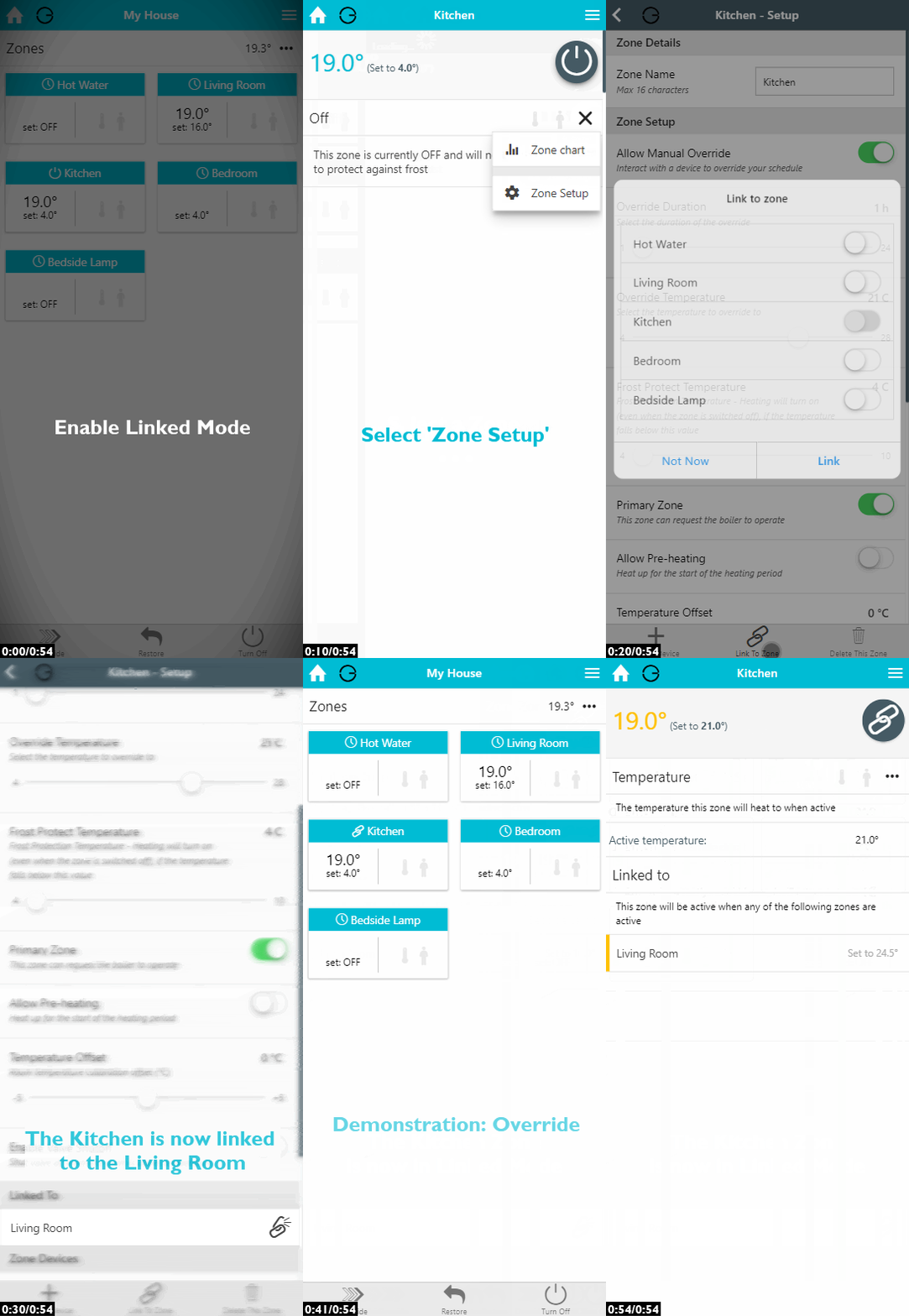
To link a zone to one or more parent zones:
-
From the My House page, click on the zone that will be the child.
-
Click on that zone's sub-menu.
-
Click 'Zone Setup'.
-
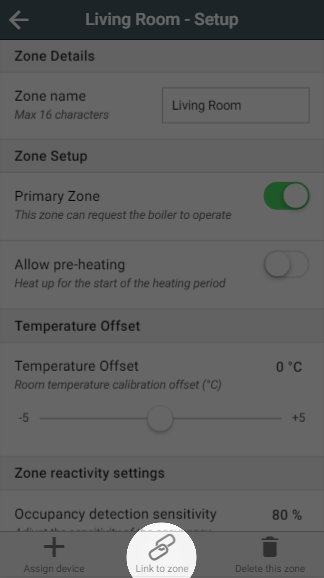
On the Quick Actions bar, click on 'Link to zone'.
-
Select the parent zone(s) to link to.
-
Click 'Link'.
The 'Linked Zones' icon will appear in the child zone's mode selector to show that the zone is linked to one or more parent zones.
The demonstration below shows a parent zone being overridden, with its child zone heating at the same time:
|
Demonstration |
|---|
|
How to edit the child zone temperature
Once you have linked the child zone to its parent zone(s), you need to set the child zone's temperature. To change it:
-
From the My House page, click on the child zone you want to change the active temperature of.
-
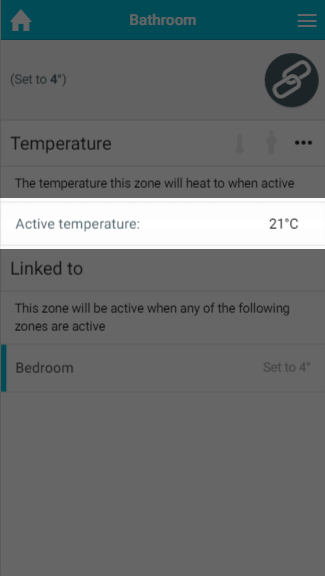
Click on 'Active Temperature'.
-
Select the new temperature.
-
Click 'Set'.
The parent zones that the child zone is following are shown underneath the Active Temperature, each with an indicator showing whether that zone is currently calling for heat. This is similar to the zone list shown on tablets and computers, and the indicator on the timerbars on the My House page (if you have chosen that style).
How to remove a link to another zone
|
Demonstration |
|---|
|
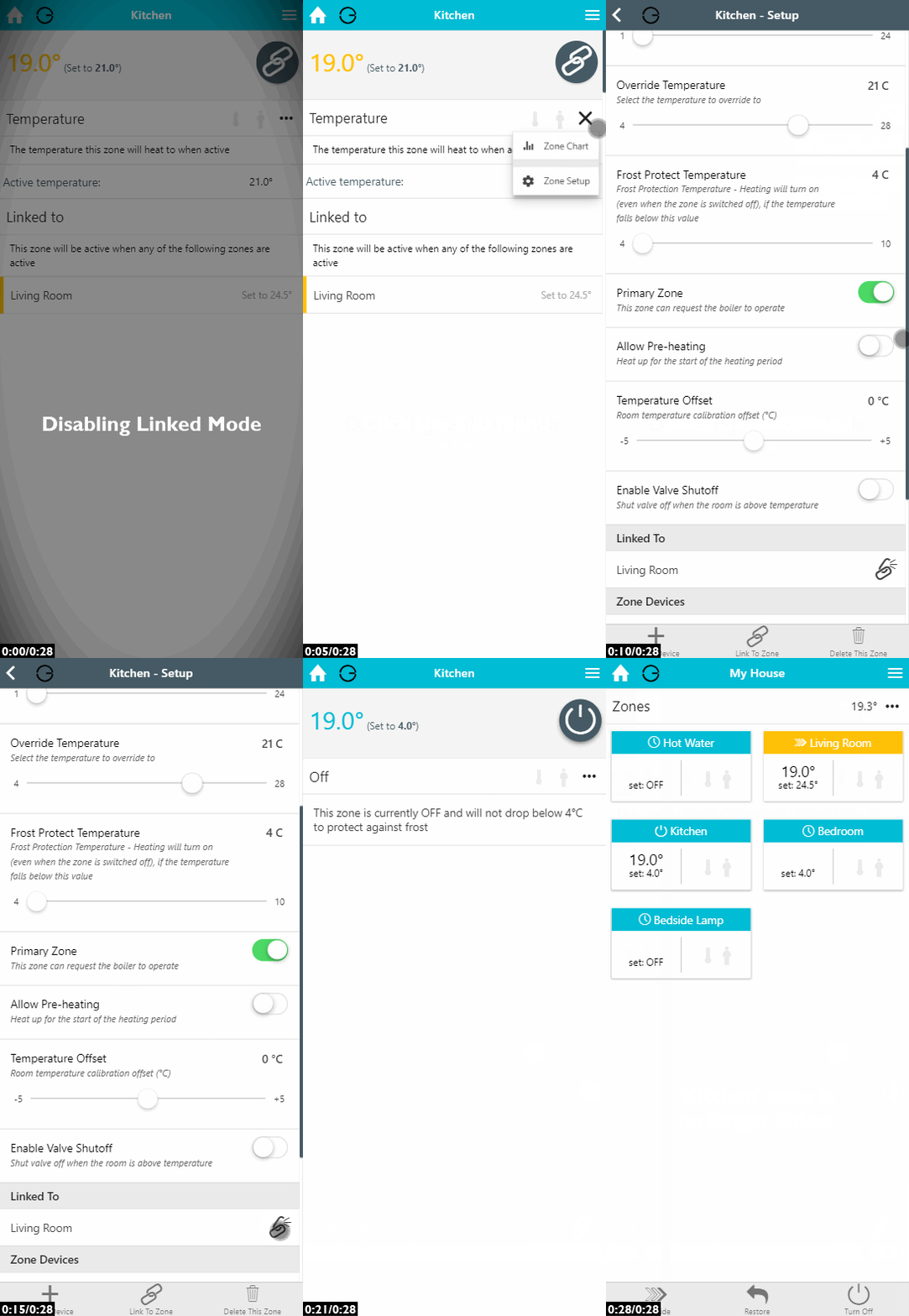
If you no longer want a child zone to follow one of its parent zones:
-
From the My House page, click on the child zone you want to remove a parent zone from.
-
Click on that zone's sub-menu.
-
Click 'Zone Setup'.
-
Scroll to the 'Linked to' section.
-
Click on the broken chain icon next to the zone you no longer want the child zone to follow.