
Override mode is used to temporarily change the temperature or on/off state of a zone. Once the override has expired, the system will automatically return the zone to its previous mode and schedule.
Override from the app
Overriding a single zone
|
Demonstration |
|---|
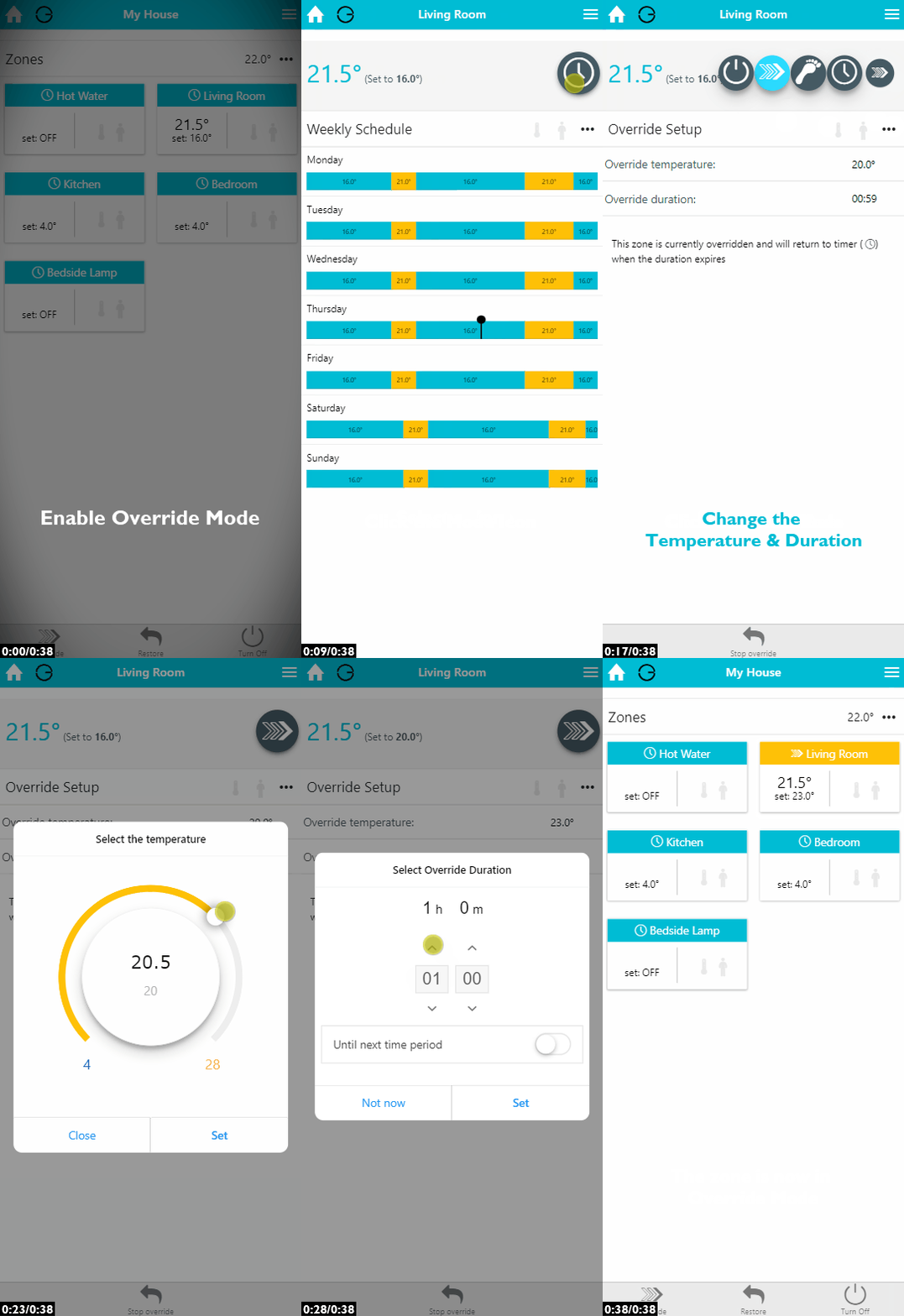
|
To override a single zone from the app:
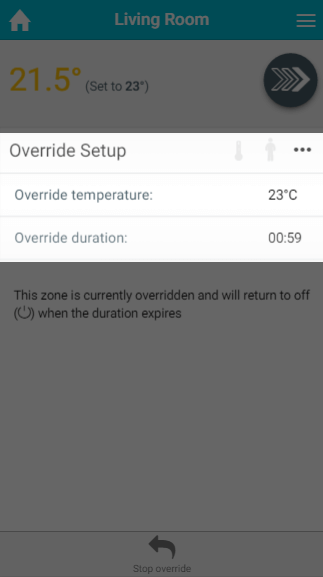
-
From the My House page, click on the zone you wish to override.
-
Change the mode to Override.
-
Select the temperature you want to override the zone to. This can be higher or lower than the current temperature, so you can use it to bring the heating on at a different time of day or to turn it off earlier than usual.
-
Select the duration of the override.
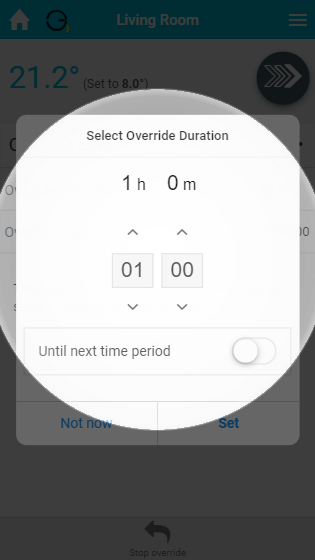
-
The override will start immediately.
For an On/Off zone, you can choose whether to override the zone On or Off by clicking on 'Override setting'.
Instead of choosing a duration, you can override until the next heating period. This is often used to bring the heating on earlier than usual: if you choose the same temperature as the next heating period, the zone will move from the override into the heating period seamlessly.
To check how long is left on an override, click on the zone from the My House page. The override duration counts down from when the override began, and shows the time remaining.
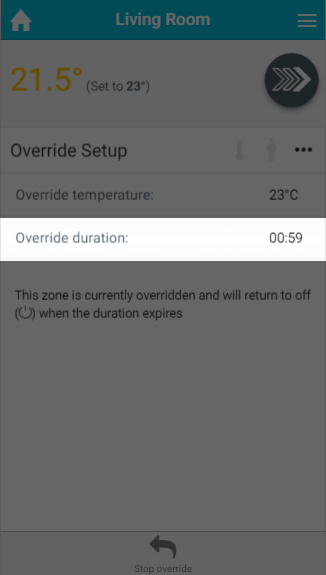
Edit an override
If the override you have set up no longer suits your needs, you can change its time and temperature:
-
From the My House page, click on the zone you have overridden.
-
Click on either the time or the temperature to change the setting.
-
The override will update with the new setting.
Stop an override
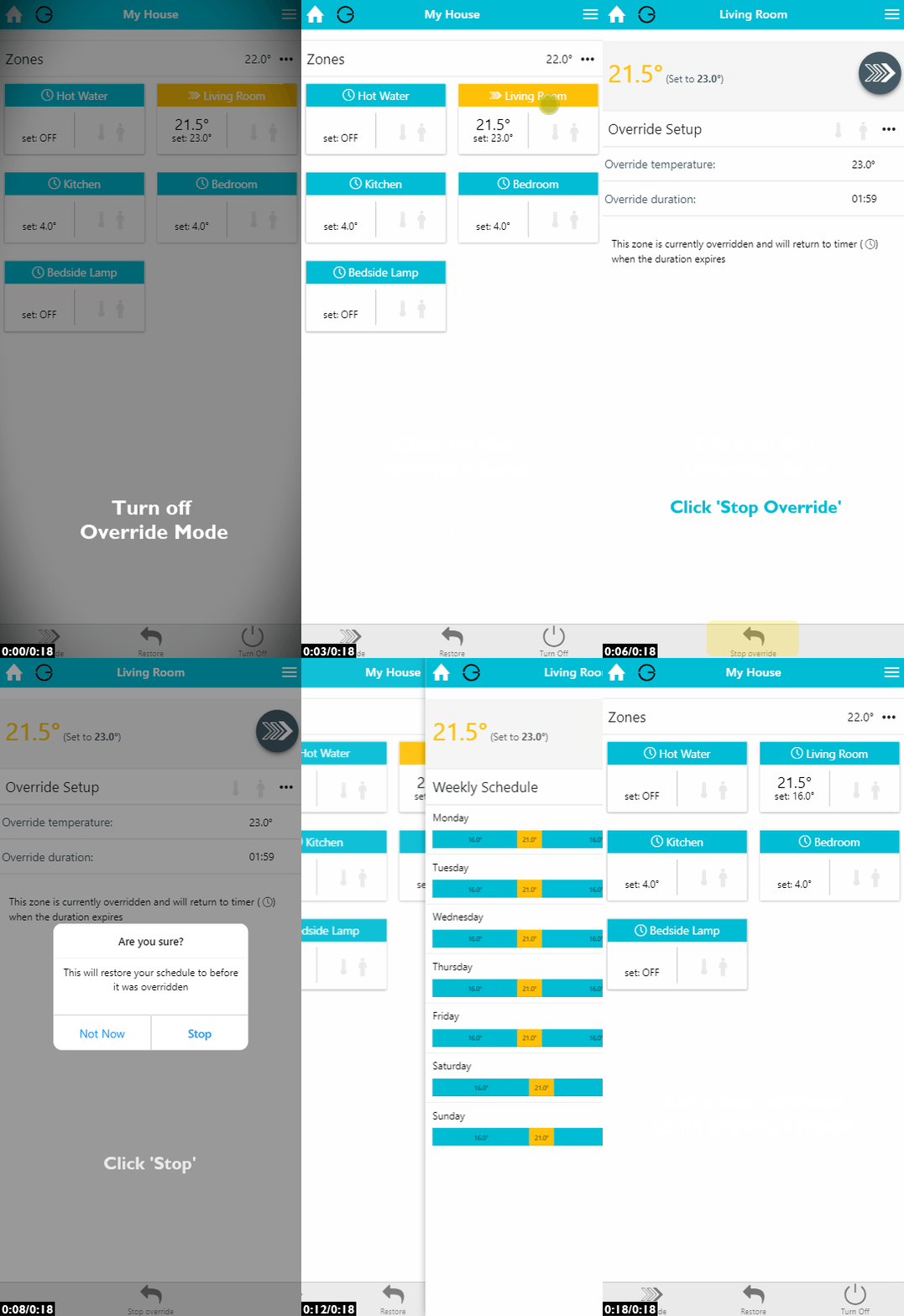
If you want to stop an override before it reaches its end time:
|
Demonstration |
|---|
|
-
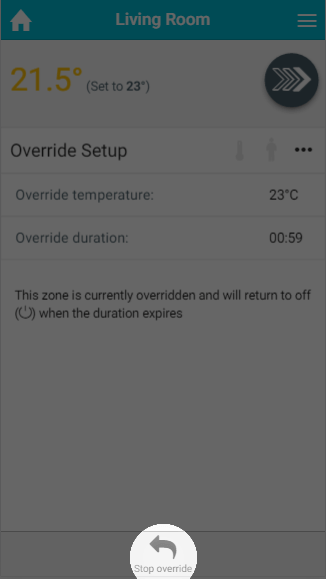
From the My House page, click on the zone you wish to cancel the override of.
-
In the Quick Actions bar at the bottom of the page, click on 'Stop Override'.
-
Click 'Stop'.
The zone will return to the mode and schedule that were active before the override was set.
Overriding multiple zones
If you want to override several zones at once, to the same temperature and for the same duration, you can do this from the My House page. You can select multiple zones of the same type (e.g. Radiator zones, or On/Off zones). For more information, see 'The My House page' chapter.
Override from the device
In many of your zones, the devices have physical controls you can use to adjust the heating, such as the buttons on a radiator valve. These can be used to override the zone without using the app.
Manual override is enabled by default, however it may have been turned off previously. To override a zone from its devices, first enable 'Manual override' in that zone's Zone Setup page and choose the override duration (and, for temperature zones, the default override temperature). You can also limit how high an occupant can set an override using 'Override Temperature Limiting'. For more information, see the 'Setup pages' chapter.
To set an override from a device:
-
On the Wireless Room Thermostat (HI-WRT-D):
-
Press the up or down button until the desired temperature is reached. The zone will override to that temperature for the duration set in the app. The set temperature is the number at the top-right of the screen.
-
-
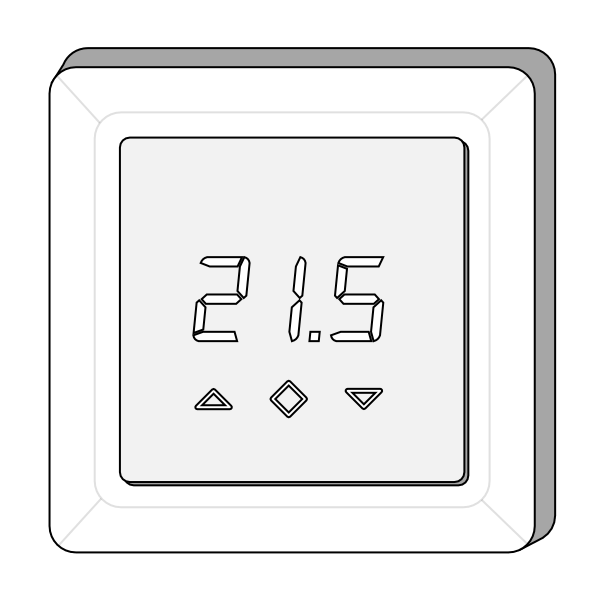
On the Powered Room Thermostat (HI-PRT-A):
-
Press the up or down button until the desired temperature is reached. The zone will override to that temperature for the duration set in the app.
-
-
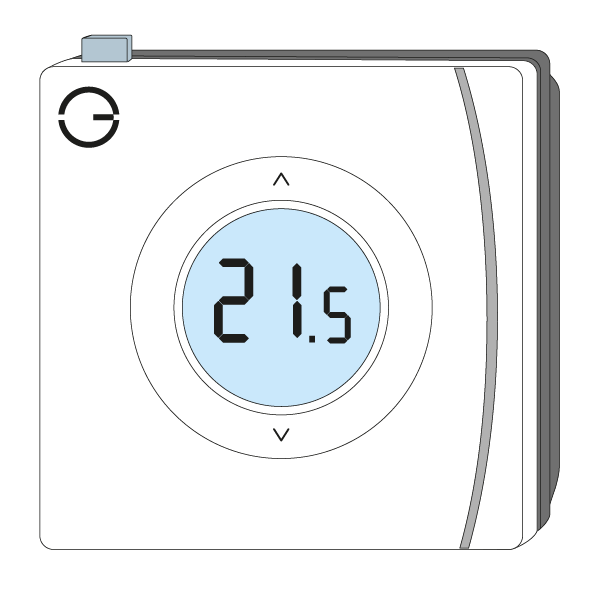
On the Genius Room Thermostat (DA-WRT-C):
-
Press the up or down button until the desired temperature is reached. The zone will override to that temperature for the duration set in the app.
-
Alternatively, you can set the override duration on the device by pressing the top button after selecting the override temperature.
-
-
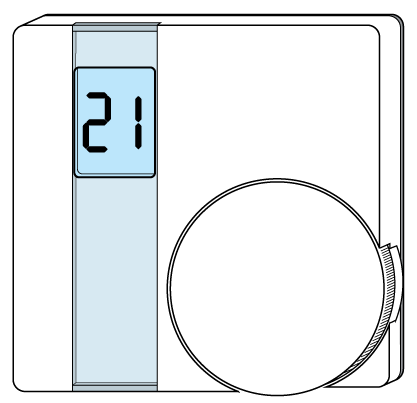
On the Wireless Room Thermostat (HO-WRT-B):
-
Rotate the dial until the desired temperature is reached. The zone will override to that temperature for the duration set in the app.
-
-
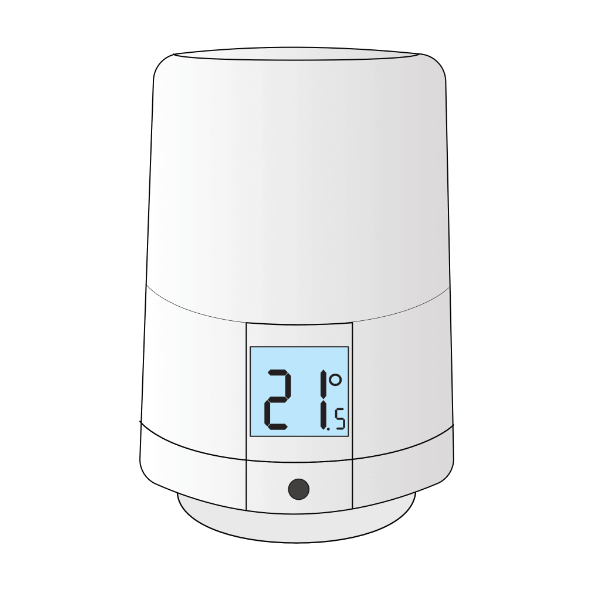
On a Wireless Radiator Valve (DA-WRV-E):
-
Rotate the top section of the valve until the desired temperature is reached. The zone will override to that temperature for the duration set in the app.
-
-
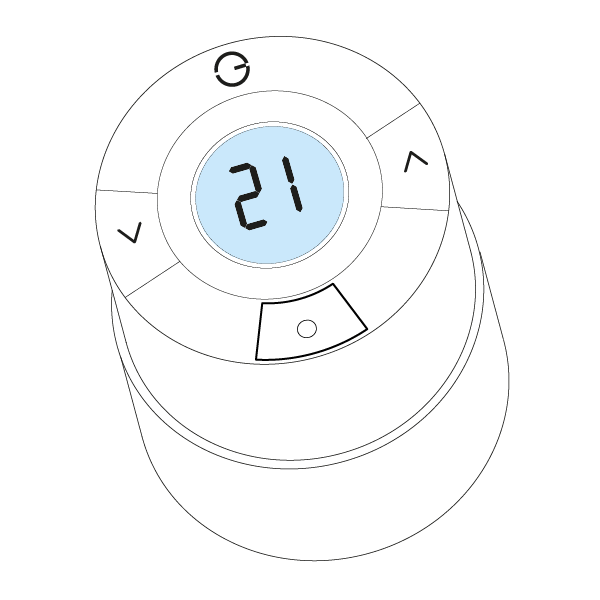
On a Genius Radiator Valve (DA-WRV-C, DA-WRV-B or DA-WRV-A):
-
Press the up or down button until the desired temperature is reached. The zone will override to that temperature for the duration set in the app.
-
-
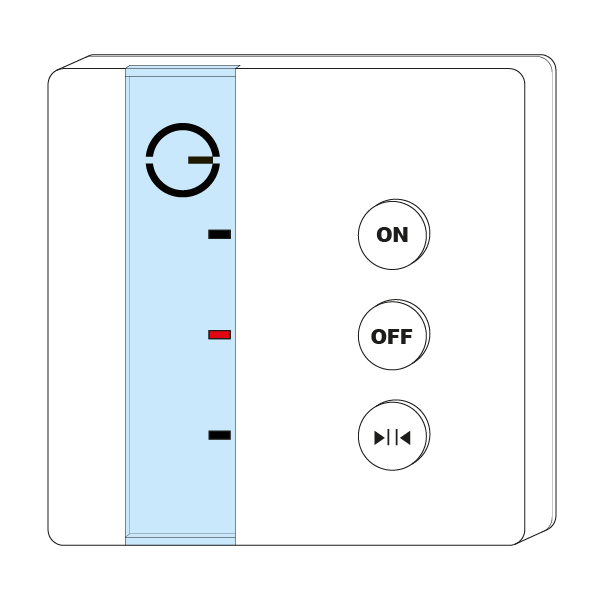
On the Single Channel Receiver (HO-SCR-C):
-
Press the On (top) button. The zone will be overridden for the duration set in the app. A temperature zone will override to the override temperature set in Zone Setup; an On/Off zone will switch On.
-
-
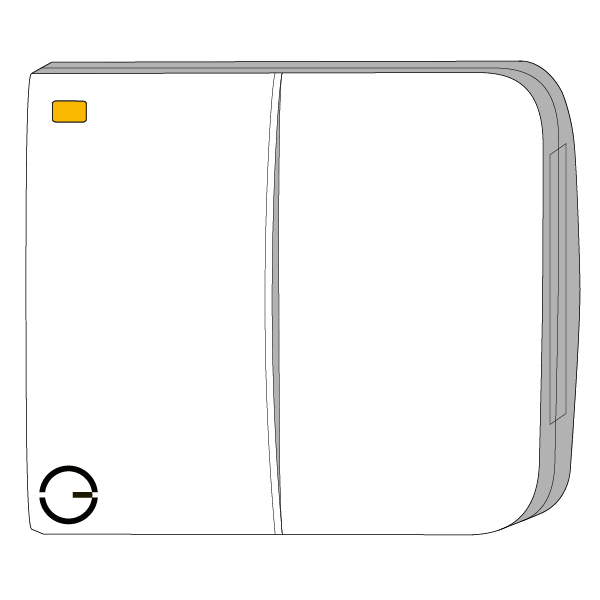
On the Dual Channel Receiver (HO-DCR-C):
-
Check the door panel to see which of the white buttons relates to the zone you want to override.
-
Press that white button and the green button at the same time. The zone will be overridden for the duration set in the app. A temperature zone will override to the override temperature set in Zone Setup; an On/Off zone will switch On.
-
-
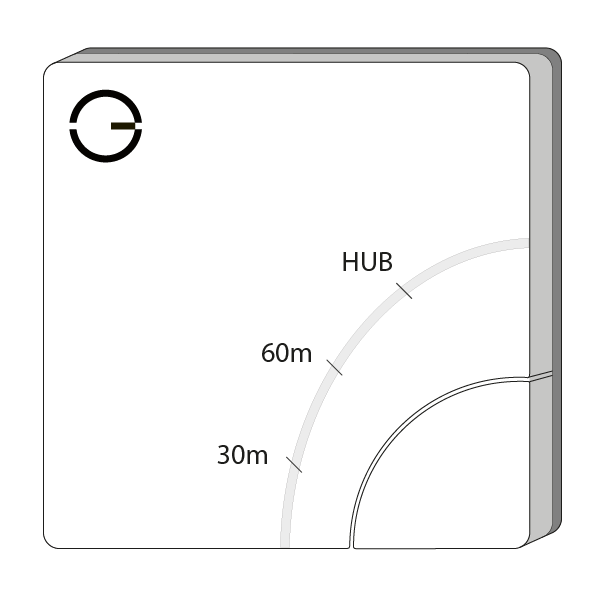
On the Electric Switch (HO-ESW-D):
-
Press the button at the bottom right-hand corner of the Electric Switch. The override duration (30, 60 or 120 minutes) depends on how many times you press it.
-
-
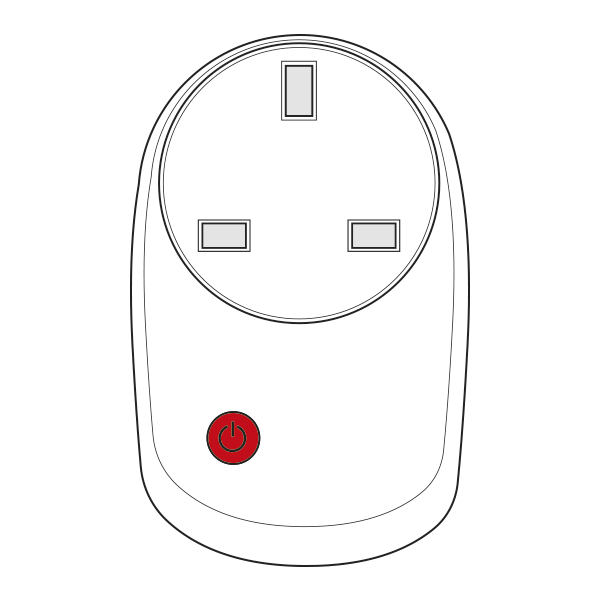
On the Smart Plug (PH-PLG-D, PH-PLG-E or PO-PLG-B):
-
When the plug is off, press the button in the middle of the plug. The zone will switch On for the override duration set in the app.
-
You only need to adjust one device in the zone. For example, if you have 2 radiator valves in the same room, the system will take the override from one valve and pass the new setting on to all of the devices in the zone.
My House Override
If your My House Thermostat reports the temperature to My House, you can use it to override all of your Radiator and Underfloor zones at once.
-
Adjust the temperature on the My House Thermostat (as described above). All of your Radiator and Underfloor zones in Timer, Sense, Footprint or Override mode will override to the temperature selected on the device, for the duration set in My House Setup.
-
Zones in Off mode will not be overridden by the My House Override, so rarely used rooms (such as spare bedrooms) are not heated every time someone adjusts the My House Thermostat.