When you are logged in and have finished the tour, the first screen you will see is the My House page. This is an overview of your system and you can access any of your zones from this page.
-
To access the schedule for any of your zones, click on the respective zone tile.
-
To return to this page at any time, click on the My House icon at the top-left of the screen.
Your zones
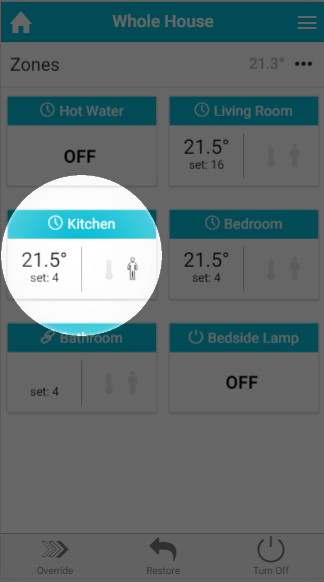
The tiles provide a quick summary of each of your zones:
-
When the tile is blue, the zone is up to temperature and is not calling for heat. When the tile is orange, the zone is trying to heat up and so calling for heat (or on if it is an On/Off zone).
-
The mode icon shows the current heating mode for the zone.
-
The temperatures are made up of 2 parts:
-
The measured temperature: This is the current temperature in the zone, and is displayed in any zone where the devices feed the temperature back to the app (such as zones with a Room Sensor or Thermostat).
-
The set temperature: The temperature the zone is currently controlling to.
-
In On/Off zones, only the current state (on or off) of the devices in that zone is displayed.
-
-
The pre-heat symbol will be lit up when the zone is heating due to the pre-heat settings. For more information on pre-heat, please see the 'Setup pages' chapter.
-
The occupancy symbol shows when occupancy is detected in a zone. For more information on what the various states of the symbol mean, see 'The Zone pages' chapter.
To view a zone in more detail, click on that zone's tile.
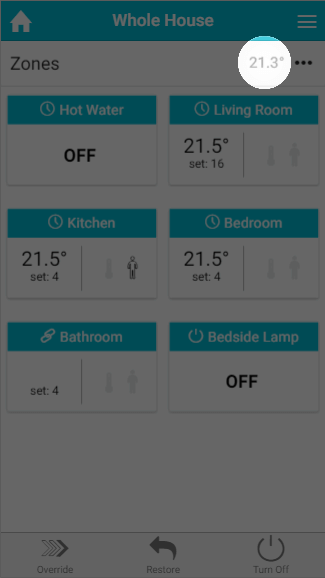
In the 'Zones' title bar is the My House temperature. This is the temperature measured by your My House Thermostat, and is used as a backup temperature for a zone if its temperature sensing device stops communicating (e.g. if a Room Sensor has a flat battery).
Quick actions
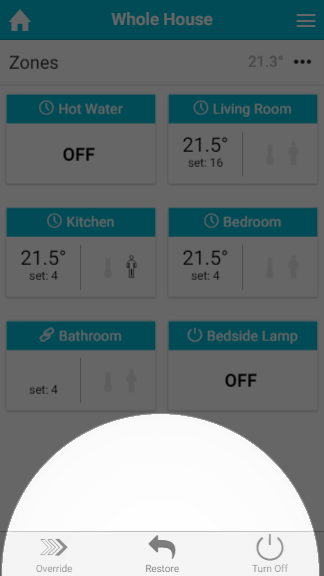
To carry out an action which affects a number of zones at once, you can use the quick actions located at the bottom of the screen.
-
Override: This allows you to override multiple zones to the same temperature and for the same duration, in one action. You can select multiple zones of the same type (e.g. Radiator zones, or On/Off zones). To override zones from the My House page:
-
Select which zones you would like to override, then click Next. You can choose just one zone or multiple zones. To select all of the zones, click on the link at the top of the list.
-
Select the temperature you wish to set in the selected zones (or On/Off for On/Off zones), and click Next. This temperature can be higher or lower than the scheduled temperature in the zone, so you can use this feature to turn the heating off early if you are leaving the house earlier than usual.
-
Choose how long the override should last, and click Finish. This can be set from 5 minutes to 24 hours, so it can be used to give the room a boost on colder days or to turn the heating off if you are going out for the day.
-
-
Restore: This action cancels either the Override or the Off action set in the zones and reverts the selected zones back to their previous mode. This means that if you turn your heating to 'Off' over the summer, you can just click 'Restore' to put your heating back on for the winter.
-
Off: This action turns all of your heating zones (not On/Off type zones, such as Hot Water or Lamps) to Off mode. Zones in this mode will not be affected by a manual override of the My House Thermostat. If a zone is overridden from a device in the zone or from the app, then after the override expires the zone will return to the mode it was in before (e.g. Timer, Sense or Footprint) and not return to Off. Turning a zone off here can be thought of as 'off until' another action in the zone. For more information, see the 'Off Mode' chapter.
More information
Connection Icon
Next to the My House icon in the header bar is an icon showing the current connection status.
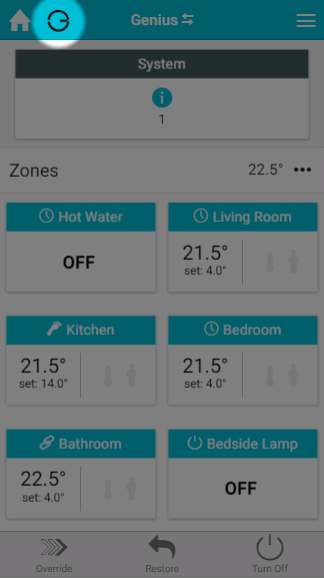
-
G icon
-
Everything is communicating as normal.
-
This is what should be shown the majority of the time you are using the app.
-
-
G icon with Amber spinner
-
The app is currently attempting to sync the latest data.
-
This is likely to be shown when the app is first launched, or reopened after being minimised. The app will be refreshing the connection and the data shown on the screen.
-
To save data, many of the setup pages do not collect data at a regular interval, but instead only do so when a setting has been changed. If you are on a setup page for a long period of time, the icon may turn amber until you navigate away from the page.
-
This may also be shown if you have poor signal, and the data on the app may be out of date until the app re-establishes connection.
-
-
G icon with Red cross
-
The connection has dropped and changes on the app will not affect your heating until the connection is re-established.
-
This is likely to occur when either your Hub or the device you are using does not have a working internet connection. Check that the device you are using to view the app has a working internet connection. If so, you may need to power-cycle the Genius Hub.
-
Zone list
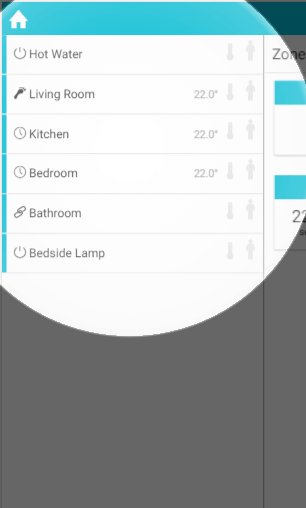
On a tablet or computer all of the zones are displayed as a list on the left-hand side of the screen. This gives you a quick way to navigate between your zones and also shows a quick summary similar to the tiles:
-
Heating indicator: shows whether the zone is requesting heat.
-
If the indicator is blue, the zone is up to temperature and not calling for heat.
-
If the indicator is orange, the zone is trying to heat up and so calling for heat (or on if it is an On/Off zone).
-
-
Mode icon: shows the current heating mode for the zone.
-
Measured temperature: for zones with a measured temperature, the current temperature of the zone is displayed on the zone list.
-
Pre-heat symbol: this will be lit up when the zone is heating due to the pre-heat settings. For more information on pre-heat, please see the 'Setup pages' chapter.
-
Occupancy symbol: shows when occupancy is detected in a zone. For more information on what the various states of the symbol mean, see 'The Zone pages' chapter.
Main menu
From the My House page or any of the zone pages, you can open the Main Menu using the button at the top right of the app.
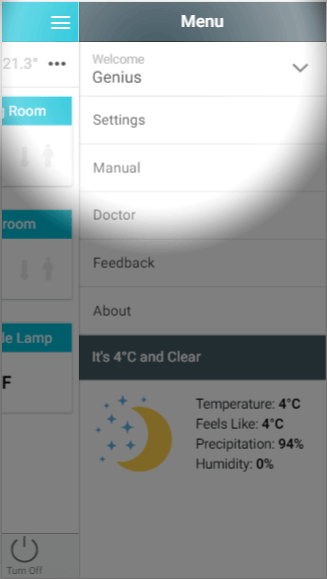
From the menu you can access the following options:
-
Your username: Update your details or log out. For more information, see the 'Registering and logging on' chapter.
-
Switch Hub: Swap between saved Genius Hubs, if you have enabled Multihub Login. For more information, see the 'Registering and logging on' chapter.
-
Settings: View and change the settings for your system, including Devices, Interface, Beta Features and System.
-
Manual: Access this manual from within the app.
-
Feedback: Report a bug or send us feedback. For more information, see the 'Troubleshooting and issues' chapter.
-
About: Contains technical information about the platform the app is running on and the version of the app you are using.
-
Weather: Shows the current weather data for your system's registered location. This is the same weather data that is used by the app for some features, and it updates every few hours.
System tile
If there is an error or notification on the system, such as a device having a low battery, the System tile will appear at the top of the My House page to inform you of this.
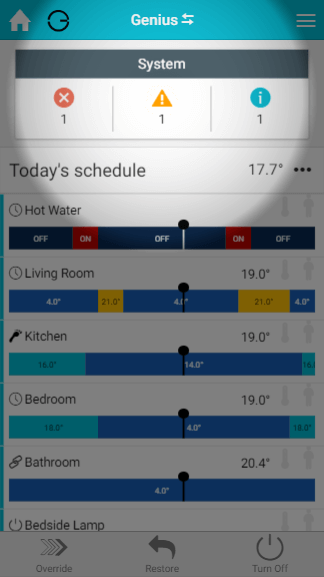
There are 3 levels of notification in the System tile:
-
Error: These are for when part of the system is no longer working, such as a device that has lost communication due to a dead battery.
-
Warning: These are lower priority messages, such as warnings that a battery is low and will run out soon.
-
Information: These are notifications, such as new software updates for your Genius Hub.
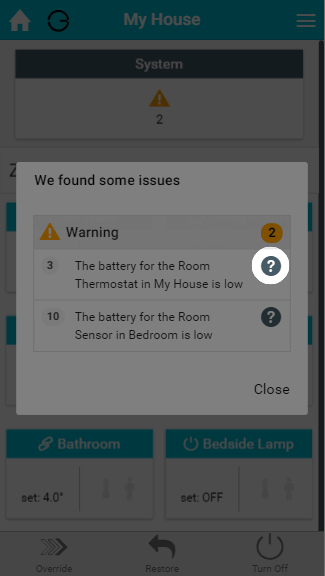
To resolve an issue:
-
Click on the System tile to list any outstanding issues for your system.
-
Click on the
to the right of the notification. This will take you to the Doctor, which will guide you through how to fix the problem.
My House sub-menu
On the right-hand side of the 'Zones' title bar is the My House sub-menu. Many pages have their own sub-menu, which provides options to customise how information is displayed on the page or to access other pages related to the one you are currently viewing.
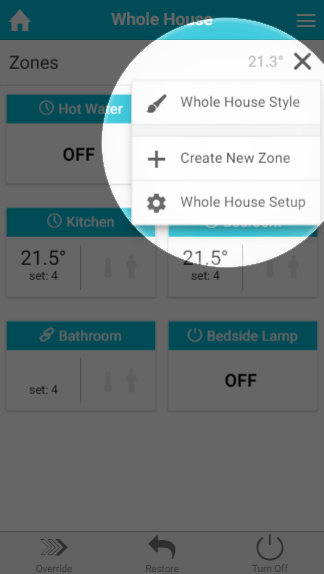
The options on the My House sub-menu are:
-
My House Style
-
Create New Zone
-
My House Setup
My House Style
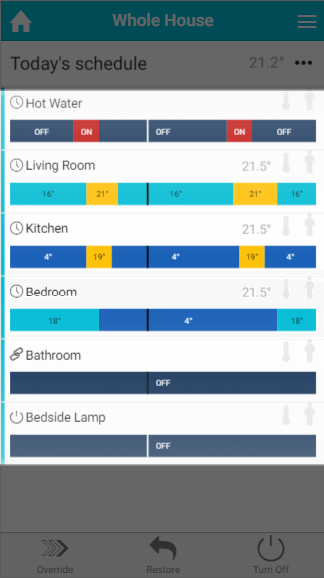
This option selects whether your zones are displayed on the My House page as tiles (as seen above) or as timerbars.
-
Timerbars show today's schedule for each of your zones, along with the same information you see when using tiles, such as the measured temperature, mode icon and whether occupancy is detected in the zone. The vertical line on the left-hand side of the timerbar shows whether the zone is calling for heat.
-
To see more detail about any of your zones, click on the respective row.
-
The current time, and therefore which part of the schedule is active, is indicated by the vertical line on the timerbar, which travels from left to right as the day progresses.
Especially on larger screens, it is not always clear when the heating periods are set for just by glancing at the timerbars. You can add dividers to the timerbars to separate the day into smaller sections. To switch these dividers on:
-
Click on the Main Menu.
-
Select Settings.
-
Click on Interface.
-
Turn on the setting 'Show details'.
On mobile devices, the dividers show every 6 hours. On larger screens there are dividers every hour, with more noticeable lines every 6 hours.
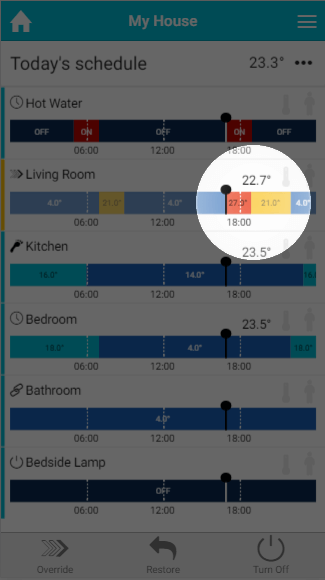
When timerbars have been selected, any overrides are displayed as an overlay on top of the schedule of the mode the app will return to once the override expires. The underlying schedule is washed out to make the override more noticeable.
Create New Zone
To expand your system to control more devices, start by creating a new zone to add the devices to.
To create a new zone:
-
Click on 'Create New Zone' in the My House sub-menu.
-
Follow the instructions displayed on screen.
An explanation of each type of control is displayed under the drop-down box to help you make the right choice.
Only 1 zone per room is required, so a room with 2 Wireless Radiator Valves only needs 1 zone to be created on the app, and both radiators will be controlled to the same schedule.
For more information, see the 'Adding new devices' chapter.
My House Setup
My House Setup lets you change the settings that apply to the whole house, such as which devices are assigned to My House (for example the My House Thermostat) and how manual overrides from those devices behave. For more information, please see the 'Setup pages' chapter.
Customising the Interface
Re-ordering your zones
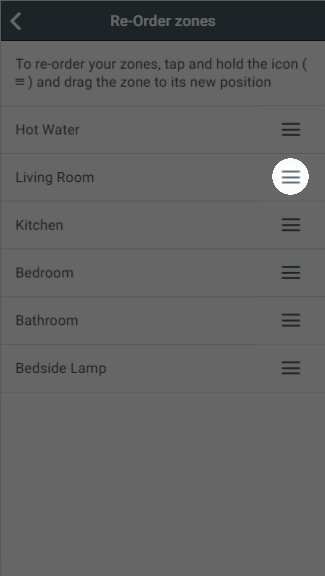
To change the order of the zones displayed on your My House page and on the Zone list (for larger screens):
-
Click on the Main Menu.
-
Select Settings.
-
Choose Interface.
-
Click on 'Re-Order zones'.
-
Click and hold the move icon on the right-hand side of the row for the zone you want to move, and drag the zone to its new position in the list.
Change the theme
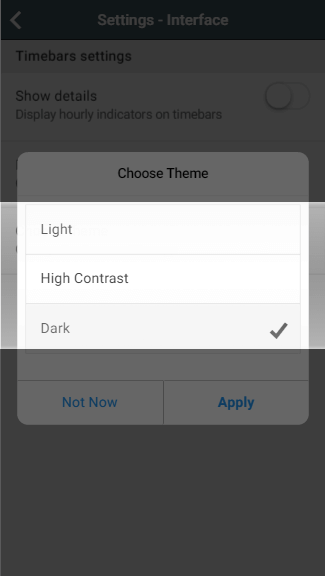
The screenshots in this manual use the 'Light' theme, but you can change the colour scheme of the app to 'Dark' or 'High Contrast', either for personal preference or to make it easier to read.
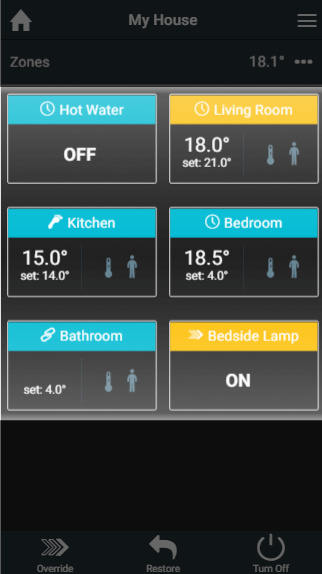
To change the theme of the app:
-
Click on the Main Menu.
-
Select Settings.
-
Choose Interface.
-
Click on 'Choose theme'.
-
Select the theme from the list.