
When you click on a zone, the zone page loads. From this page you can:
-
See the current temperature and heating in the zone.
-
Change the mode of the zone by clicking on the mode selector at the top right of the page (under the Main Menu).
-
See the weekly schedule / current settings for the zone.
-
Access the zone sub-menu for more features and settings.
Current temperature and heating
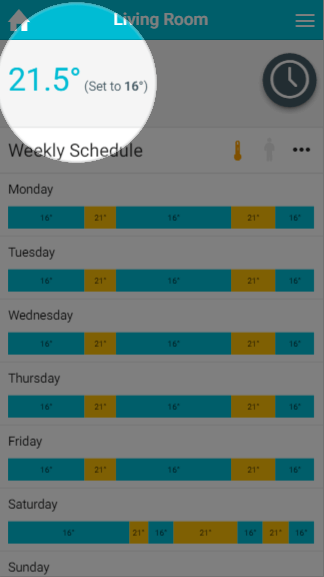
On the left-hand side of the zone page (in the grey area), up to 2 pieces of information can be displayed:
-
The measured temperature: This is the current temperature in the zone, and is displayed if the zone has a device which feeds the temperature back to the app (such as a Wireless Radiator Valve, Room Sensor or Room Thermostat).
-
The colour of the measured temperature shows whether the zone is calling for heat. If the temperature is blue, the zone is up to temperature and not calling for heat. If the measured temperature is orange, the zone is trying to heat up and so calling for heat (or on if it is an On/Off zone).
-
-
The set temperature: The temperature the zone is currently controlling to.
-
For an On/Off zone, this will display whether the zone is currently on or off.
-
Mode selector
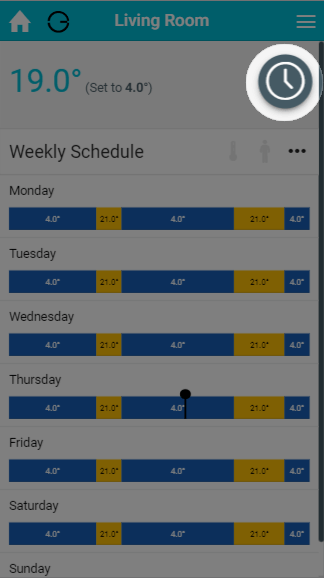
The mode selector allows you to easily change the mode of a zone. The icon for the zone's current mode is always displayed in the mode selector.
To change the mode of the zone:
-
Click on the mode selector. The other available modes will be displayed.
-
Click on the mode you wish to change the zone to, and the page will update.
If you wish to stay in the current mode, click on the current mode icon (the smallest icon, on the right-hand side) and the mode selector will close.
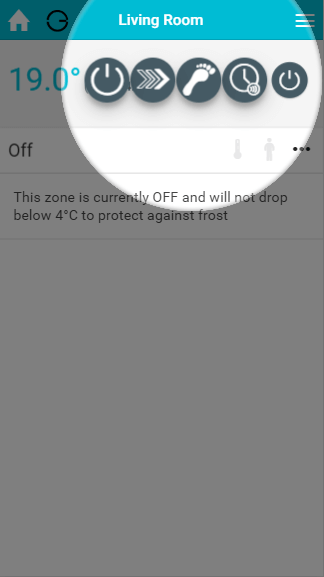
To find out more about each of the modes, see the chapters on Off Mode, Timer Mode, Sense Mode, Footprint Mode and Override Mode.
Activity icons
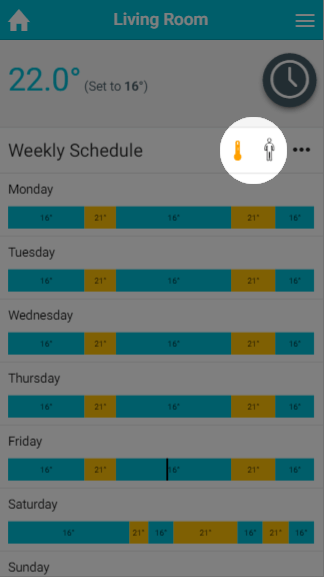
Directly underneath the mode selector are 2 activity icons:
-
The pre-heat symbol: This symbol will light up when the zone is heating due to the pre-heat settings, and is greyed out otherwise. For more information on pre-heat, please see the 'Setup pages' chapter.
-
The occupancy symbol: This symbol changes when occupancy is detected, in different ways depending on the mode of the zone.
-
In Sense and Footprint Mode:
-
Greyed out: no occupancy detected
-
Hollow icon: occupancy detected, but not enough to call the heating on
-
Solid icon: enough occupancy has been detected to call the heating on
-
-
In other modes:
-
Greyed out: no occupancy detected
-
Hollow icon: occupancy detected
-
-
In Footprint Mode, you can click on the occupancy symbol to see more information on how much occupancy has been detected, and when the heating will turn on or off.
Current settings / schedule
The detailed information for the zone is displayed under the mode selector. This changes based on the mode you have selected and the type of zone you are viewing. The main displays are:
-
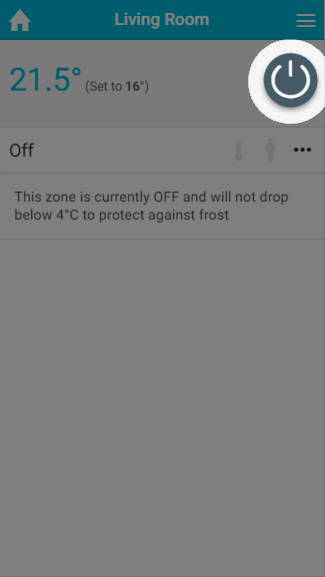
Off mode: For Radiator and Underfloor zones, this puts the zone into frost protection, so the heating will only turn on if the measured temperature drops below the temperature displayed in the on-screen message (4°C by default; this can be changed in the Zone Setup). For On/Off zones, this will turn the zone off and it will not turn on under any circumstances.
-
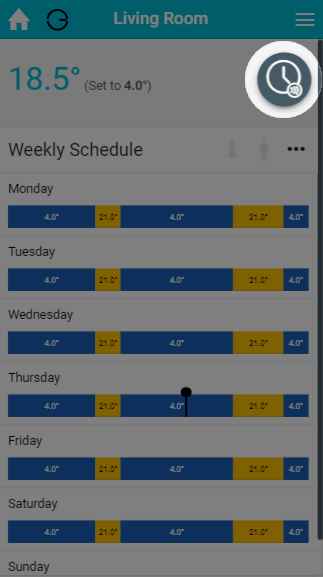
Timer mode: The heating in the zone will follow a chosen schedule, as shown in the timer bars. You can change this schedule to suit your circumstances on a zone-by-zone and day-by-day basis. The settings you can choose from differ based on the type of zone you are viewing. To change the schedule for any day, click on the timer bar for the day you want to adjust.
-
Sense mode: Similar to Timer mode, the zone will follow a chosen schedule, which you can edit at any time. In Sense mode, you can also choose for heating periods to only heat up if occupancy is detected during those times, to avoid heating empty rooms. Sense mode is a Beta feature; when it is enabled, it replaces Timer mode in the mode selector.
-
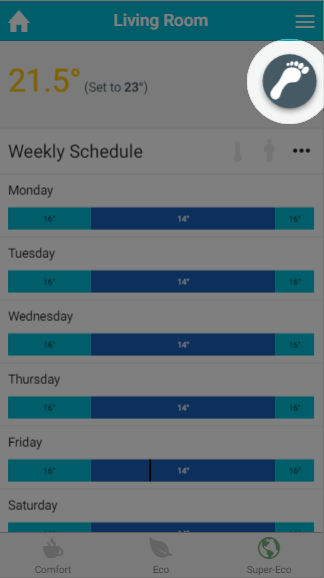
Footprint mode: In this mode the system will heat the zone based on whether the zone is normally used at this time, and whether anyone is currently using the zone. The timer bars cannot be clicked in this mode, as the schedule is created automatically by your Genius Hub.
-
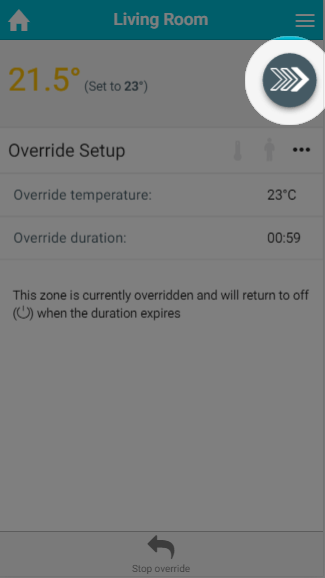
Override mode: This mode allows you to temporarily adjust the heating in the zone by setting an override temperature and duration. For On/Off zones, you can override the zone On or Off for the duration set.
Zone sub-menu
On the right-hand side of the 'Current settings / schedule' title bar is the zone sub-menu. The sub-menu provides options to access other pages related to the one you are currently viewing, perform quick actions or change the setup of the zone you are viewing.
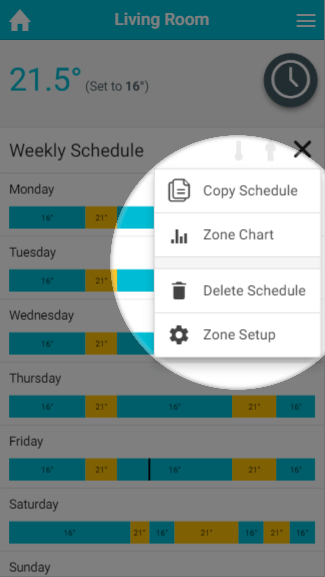
The standard options on the zone sub-menu are:
-
Zone Chart
-
Zone Setup
More options may be displayed depending on which mode is active for the zone. These are described in the chapter for each mode (see the links above).
Zone Chart
The chart pages display the historical heating and occupancy data for the zone you are viewing. For more information, please see the 'Charts' chapter.
Zone Setup
Setup pages allow you to change the configuration of a zone, such as its name and which devices are assigned to it, and to enable extra features such as pre-heating. For more information, please see the 'Setup pages' chapter.