
In Sense mode, you can set up a 7-day schedule to control the heating in a zone, in a similar way to Timer mode. You set up 'heating periods' to suit your needs, each with a start time, end time and temperature, and choose whether each period should switch on regardless, or only when someone is in the zone.
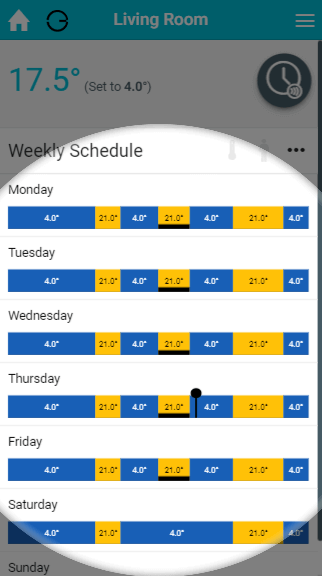
In Radiator, Underfloor and Hot Water Temperature zones you set a temperature for each heating period. In On/Off zones, heating periods are always On, but can still be set to only switch on when occupancy is detected.
'React to occupancy' will only work in zones with a Wireless Room Sensor, Wireless Motion Sensor or Occupancy Trigger channel assigned to them.
Enabling Sense Mode
Sense Mode is a Beta feature. When it is enabled, it replaces Timer mode in the mode selector.
|
Demonstration |
|---|
|
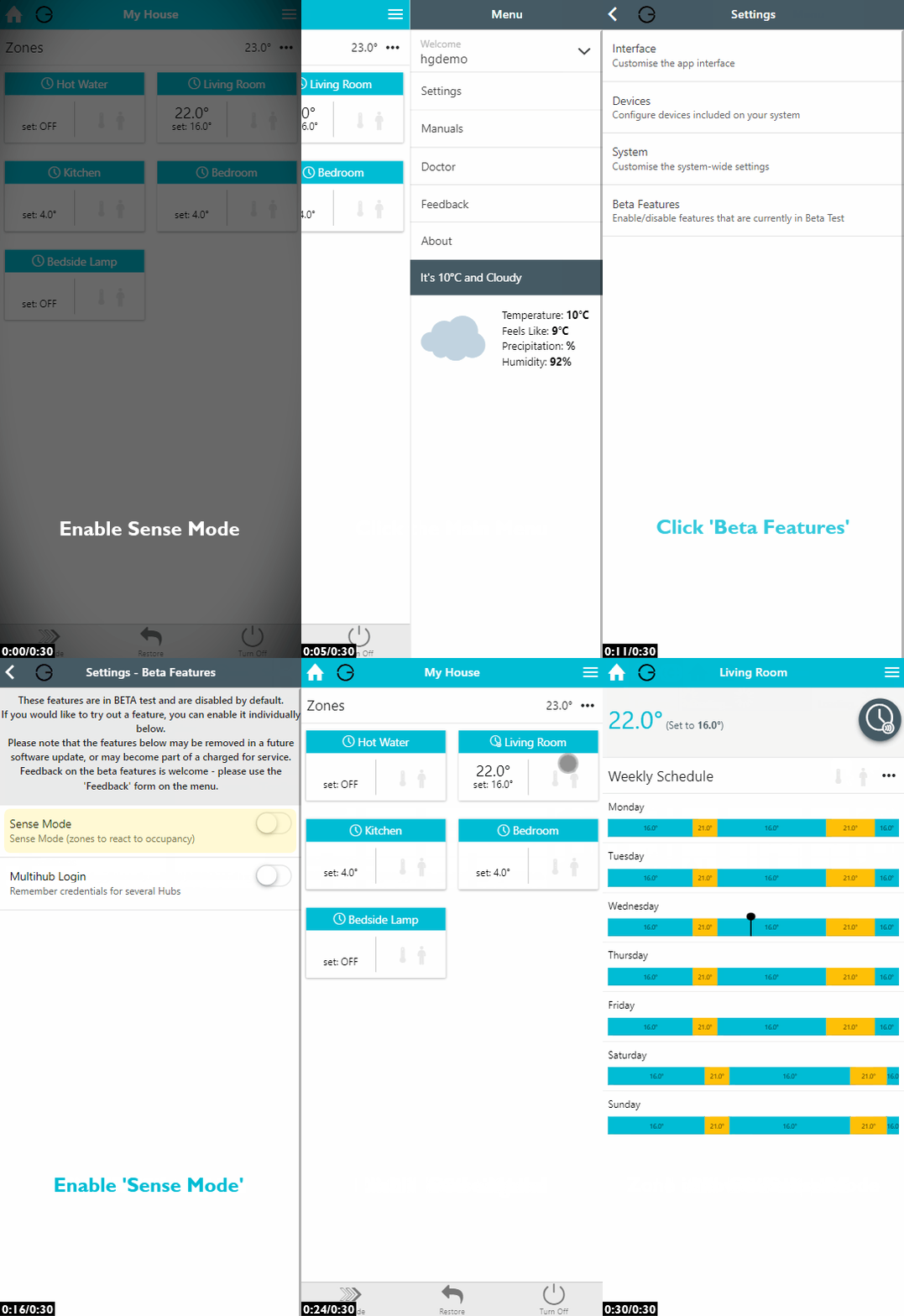
To enable Sense Mode:
-
Click on the Main Menu, followed by 'Settings'.
-
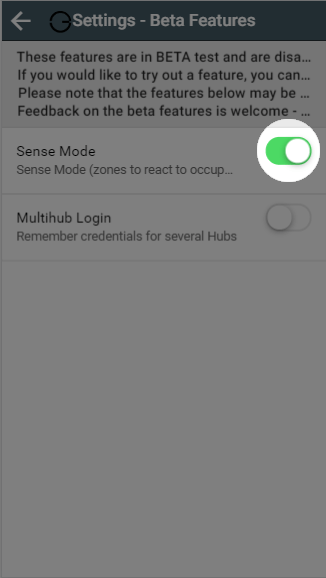
Choose 'Beta Features' and click the toggle for 'Sense Mode'.
-
The 'Timer' mode option in the mode selector is now replaced with 'Sense' mode.
Viewing the schedule
To view the schedule for any zone:
-
From the My House page, click on the zone you wish to view.
-
Ensure the zone is in Sense mode.
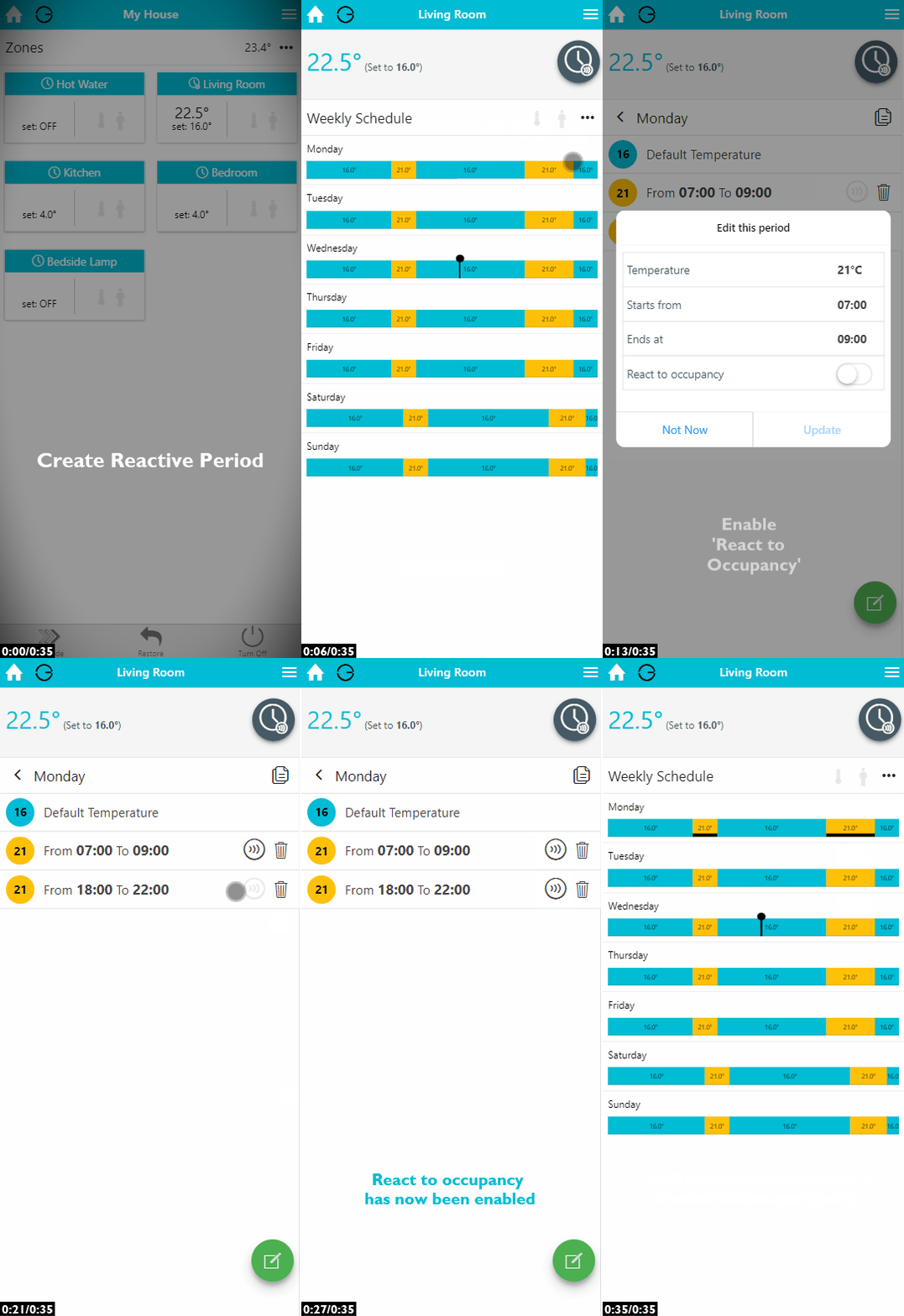
Heating periods which will react to occupancy are shown with an underline on the timerbars, and with a motion symbol next to the times and temperature when you are editing heating periods.
To view a day's schedule in more detail, click on that day. This will show the details of the schedule, including the default temperature and a list of the heating periods.
How the set temperature is decided in Sense mode
For a reactive heating period:
-
If enough occupancy is detected to activate the zone (shown by a solid occupancy symbol), the zone will control to the set temperature of the heating period.
-
If no occupancy, or not enough occupancy, is detected (shown by a greyed-out or hollow occupancy symbol), the zone will control to the default temperature.
For a non-reactive heating period (or outside of heating periods):
-
The zone will control to the set temperature of the heating period (or the default temperature), whether or not occupancy is detected.
How to set up your schedule
Adding a heating period
With the Genius Hub system you can set as many heating periods as you need throughout the day.
|
Demonstration |
|---|
|
Each heating period must be at least 5 minutes long. There is no limit on the number of heating periods you can create.
To add a heating period:
-
From the My House page, click on the zone you wish to schedule.
-
Change the zone to Sense mode.
-
Click on the day you want to add a heating period to.
-
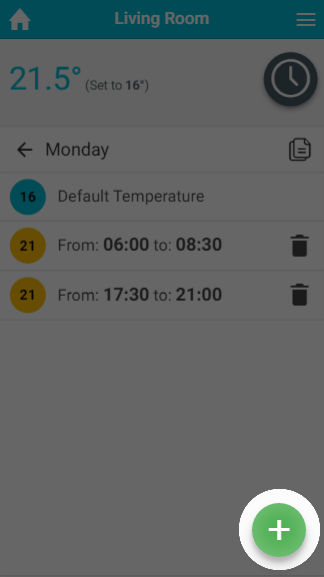
Click the floating add heating period button at the bottom-right of the page.
-
To select the temperature, drag the slider to the temperature you want, then click Set.
-
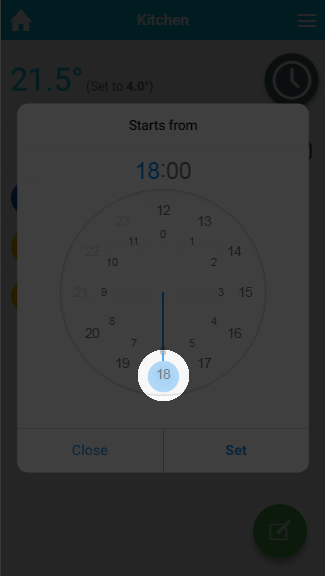
Select when the heating period should begin, by first clicking on the hour the heating period will begin.
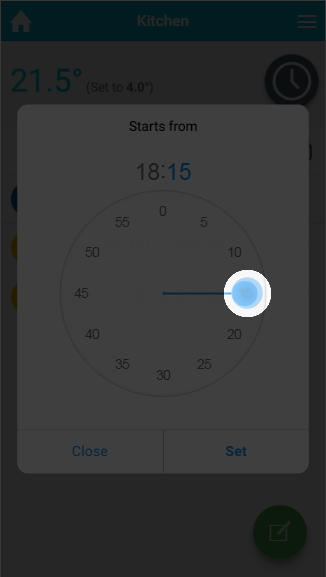
Next, click on the minutes the heating period should begin, followed by Set.
-
Select when the heating period should finish, in the same way.
-
Choose whether the heating period should run purely to the schedule (the same as Timer mode), or only heat up if occupancy is detected during that period.
-
Click OK.
If you want to change the hour after you have selected it, click on the hours in the selected time.
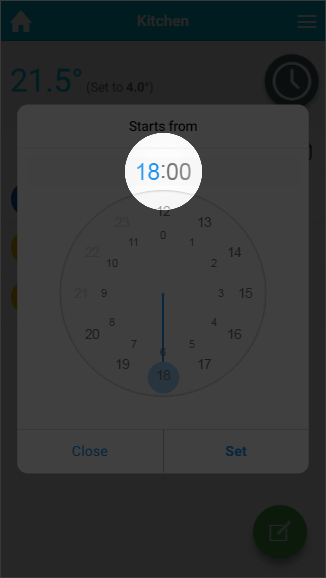
For an On/Off zone, the heating period is always set to 'On' and this cannot be changed. You can still choose whether it should only switch on when occupancy is detected.
Editing a heating period
If your routine changes or the temperature in a zone is not right for you, you can easily change a heating period.
To change a heating period:
-
From the My House page, click on the zone you wish to edit.
-
Ensure the zone is in Sense mode.
-
Click on the day you want to change the schedule of.
-
Click on the heating period you want to change.
-
Click on the option you want to change, e.g. the end time.
-
Change the option to its new setting.
-
Click OK.
Removing a heating period
If your routine has changed significantly, you may wish to delete a heating period.
To remove a heating period:
-
From the My House page, click on the zone you wish to edit.
-
Ensure the zone is in Sense mode.
-
Click on the day you want to change the schedule of.
-
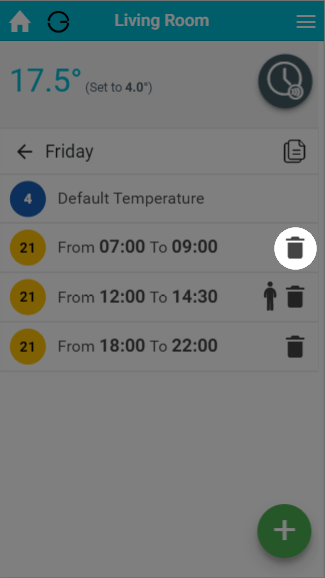
Next to the heating period you no longer want, click on the 'Bin' icon.
-
In the confirmation dialog, click 'Delete'.
A deleted heating period cannot be recovered, so make sure you are deleting the right one.
Default temperature
The default temperature is the temperature the zone controls to outside of your heating periods, and during a reactive heating period when no occupancy is detected. Setting a sensible default temperature stops the zone cooling down too far, so you don't return to a cold house and the zone doesn't take a long time to heat up again.
The default period cannot be reactive. If you want a zone to react to occupancy throughout the day, you will need to create heating periods that cover the whole 24 hours.
The default temperature can be set for each day in each zone. To do this for heating zones:
-
From the My House page, click on the zone you wish to edit.
-
Ensure the zone is in Sense mode.
-
Click on the day you want to change the default temperature for.
-
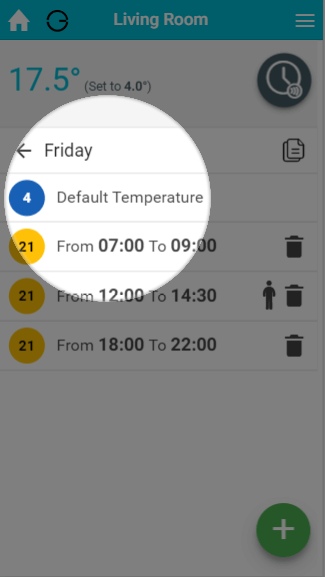
Click on the Default temperature entry at the top of the list of heating periods.
-
Change the default temperature and click Set.
Default temperatures are especially important for Underfloor zones, which can take a number of hours to reach the desired temperature. A floor has a large thermal mass, so if it gets too cold it takes much longer to warm up again than a metal radiator. We recommend setting a default temperature no more than 4°C below the normal heating temperature (for example, if your heating periods are set to 21°C, set a default of at least 17°C).
We also recommend using pre-heat for Underfloor zones.
There is no configurable default setting for On/Off zones. These zones are off by default and are on during their heating periods.
Pre-heating
Pre-heat works alongside your Sense schedule so that the zone is already warm at the start of each heating period. It is turned on from the Zone Setup.
-
If pre-heating is disabled: The system will start heating the zone at the start of each heating period, so the zone may be below temperature at the beginning of the period while it heats up.
-
If pre-heating is enabled: The system will calculate how long the zone takes to reach the set temperature and start heating that much earlier than the start of the heating period, so the zone is warm for the whole of the heating period.
-
If the heating period is set to react to occupancy, the zone will still pre-heat before the period starts. However, if no occupancy (or not enough) is detected at the start of the period, the zone will go back to the default temperature.
-
To enable pre-heating, please see the 'Setup pages' chapter.
Advanced options
|
Demonstration |
|---|
|
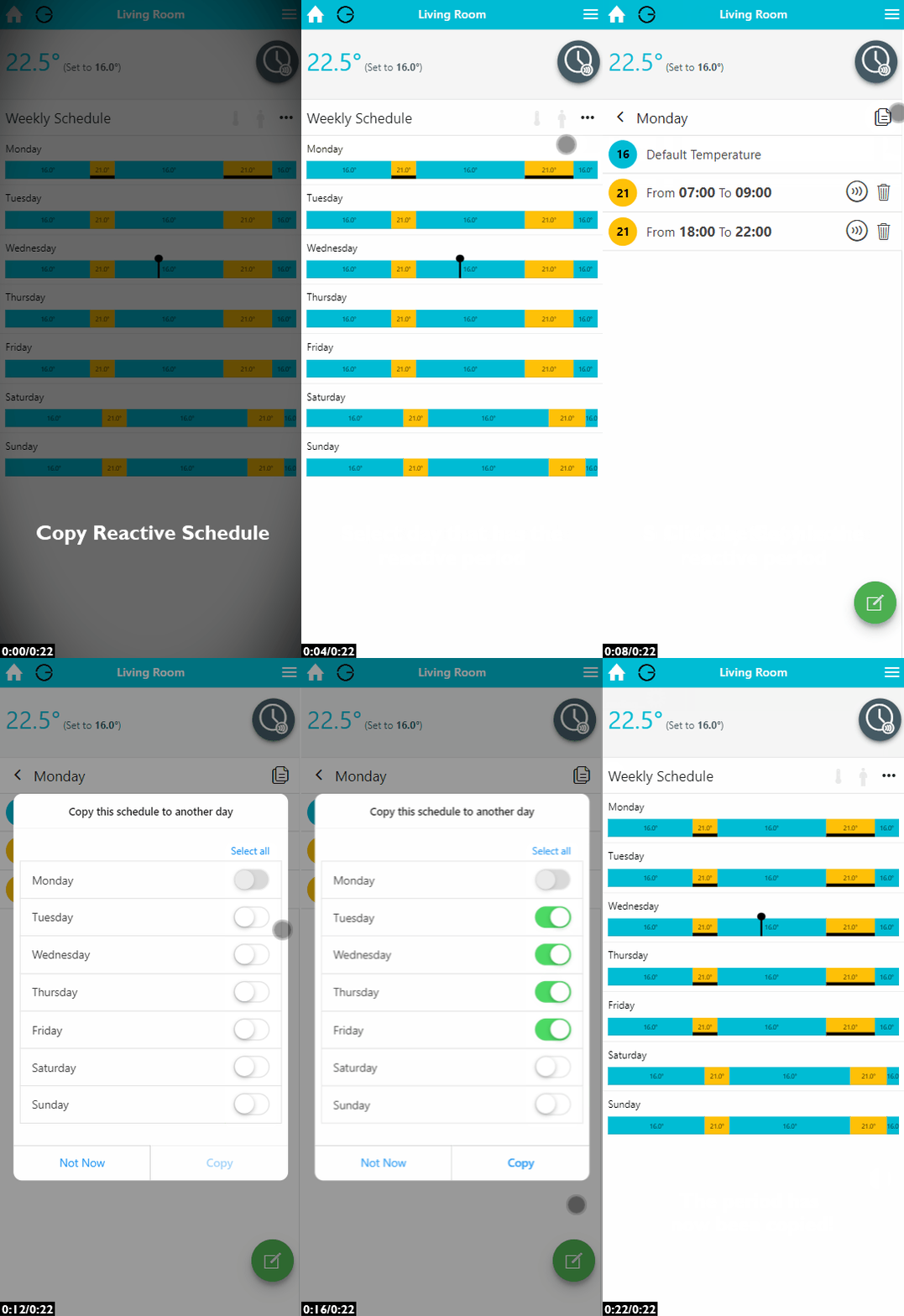
The following options work in the same way as in Timer mode (with the zone in Sense mode instead). See the relevant sections of the Timer Mode chapter: