
In Footprint mode, the system schedules the heating automatically, so you don't have to think about when you use the room. The system learns when the zone is used from the occupancy detected by a Wireless Room Sensor, Wireless Motion Sensor or Occupancy Trigger channel, and builds the schedule from this. It also reacts to when the zone is actually used, so if you leave the room early or use it outside of the predicted schedule, the heating will adjust accordingly.
Footprint mode is only available in Radiator zones with a Wireless Room Sensor, Wireless Motion Sensor or Occupancy Trigger channel assigned to them.
It is not available for Underfloor zones because, in Footprint mode, pre-heat is limited to a maximum of 90 minutes. This is enough for a radiator to warm a room before it is normally used, but not for underfloor heating, which can take up to 4 hours to come up to temperature.
Footprint mode has 2 main parts:
-
Reactive heating: The heating is triggered by occupancy being detected, or no longer being detected, in the zone. If occupancy is detected repeatedly (for example, when someone starts using the room), the heating will turn on. If occupancy stops being detected, the heating will be allowed to turn off and the zone will cool, as the room is no longer being used.
-
Predictive heating: The system uses the occupancy it detects to learn when the zone is normally used, and schedules future heating accordingly. A 7-day schedule is built from the last 2 weeks of occupancy, so if the zone was used at a particular time, the heating will be brought on at that time in the coming week. Because the schedule is based on the last 2 weeks, it may take up to 2 weeks for the system to fully adapt if your routine changes. Until then, if you don't use the zone at the usual time, the heating will still come on at the start of the predicted period, but will turn off once no occupancy has been detected for the set duration.
To view the automatically created schedule for any zone:
-
From the My House page, click on the zone you wish to view.
-
Ensure the zone is in Footprint mode, with either the Comfort or Eco setting selected on the Quick Actions bar.
-
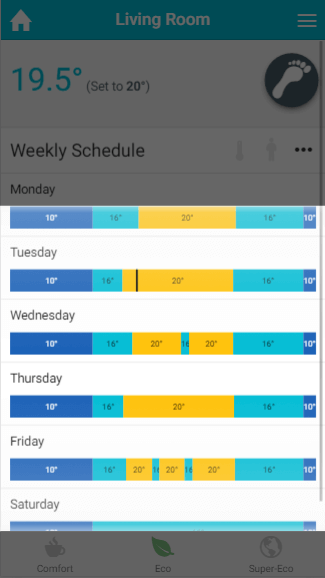
The timerbars will show the predicted schedule.
The Genius Hub is always learning the Footprint schedule in the background, so it will be ready when you switch the zone to Footprint mode.
Quick Actions
In Footprint mode, the Quick Actions bar has three settings that control how Footprint mode works in the zone:
-
Comfort: The zone heats both predictively and reactively. It is heated at the times it was used over the last 2 weeks, and the heating also stays on through short gaps between predicted periods, so the zone doesn't cool down in between. If occupancy is detected for longer than the 'trigger on' time when the zone isn't expected to be used, it will heat to the active temperature, and it will turn off after the 'trigger off' time with no occupancy detected.
-
Eco: The zone heats both predictively and reactively, the same as Comfort, but without bridging the gaps between predicted periods. It is only heated at the times it was used over the last 2 weeks, plus whenever occupancy is detected for longer than the 'trigger on' time. It will turn off after the 'trigger off' time with no occupancy detected.
-
Super-Eco: The zone only heats reactively. It will heat to the active temperature if occupancy is detected for longer than the 'trigger on' time, and turn off after the 'trigger off' time with no occupancy detected.
-
We recommend enabling automatic pre-heat when using the Comfort or Eco settings, so the zone heats up in time for when it is usually used. Without pre-heat, the zone will only start to heat at the beginning of each predicted heating period.
-
The 'Trigger on' and 'Trigger off' settings are found on the Zone Setup page. For more information, see the 'Setup pages' chapter.
Unless you only want to use the Super-Eco setting, we recommend leaving the zone in Timer mode (or Sense mode, if enabled) for at least 1 week before switching to Footprint mode, so the predicted schedule can start to be built in the background.
Zone Sub-Menu
Footprint Options
There are five options specific to Footprint mode, which should be set up before you use this mode.
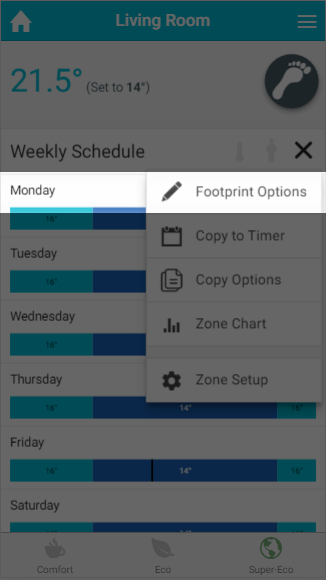
Three of the options set the temperature the zone controls to, depending on occupancy:
-
Active temperature: The temperature the zone heats to when it is heating because of the predicted schedule, or because it is reacting to occupancy. Default: 21°C.
-
Away temperature: Similar to the default temperature in Timer mode. This is the temperature the zone controls to when no one is using it and there is no predicted heating period. Default: 14°C.
-
Night temperature: The temperature the zone controls to during the 'night period'. Default: 16°C.
The other two options set the 'night period'. During the night period the zone does not respond to occupancy, which is useful once everyone has gone to bed. In a bedroom, this stops the heating reacting every time someone rolls over in bed, and in other rooms it stops the heating triggering if someone gets up for a glass of water. These two options are:
-
Starts from: The time the zone stops responding to occupancy, normally set to roughly when the last people go to bed. Default: 21:00.
-
Ends at: The time the zone starts reacting to occupancy again, normally set to when people get up in the morning. Default: 06:30.
The night period runs overnight, so the end time is always on the day after the start time.
Copy to Timer
Because the automatically created schedule is based on when the zone is actually used, rather than when you think it is used, it can be more accurate than a schedule you create yourself. If you want to use it in Timer mode (or Sense mode, if enabled), you can copy it:
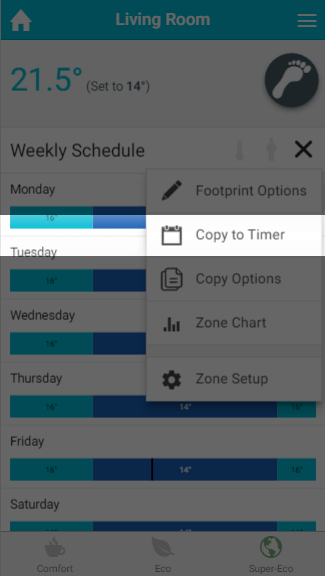
-
Go to the zone whose Footprint schedule you want to copy.
-
Click on the zone sub-menu.
-
Click on 'Copy to Timer'.
Copy Options
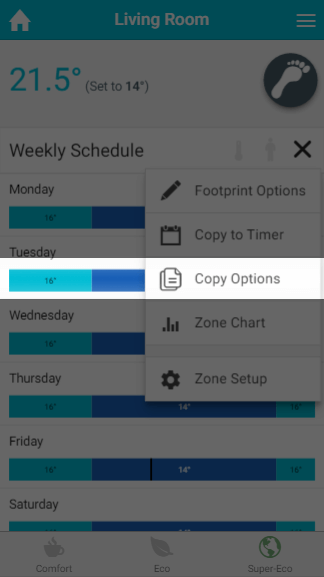
If you use Footprint mode in similar zones, you may want them to use the same Footprint Options. You can copy the options to other zones that can use Footprint mode:
-
Go to the zone you want to copy the Footprint Options from.
-
Click on the zone sub-menu.
-
Click on 'Copy Options'.
-
Select the zones to copy the options to.
Zone Setup
Other settings you may need to adjust before using Footprint mode are on the Zone Setup page. To open it:
-
Go to the zone you want to set up for Footprint mode.
-
Click on the zone sub-menu.
-
Click on 'Zone Setup'.
The relevant settings are under the headings 'Zone reactivity settings' and 'Pre-heating'. For more information, see the 'Setup pages' chapter.